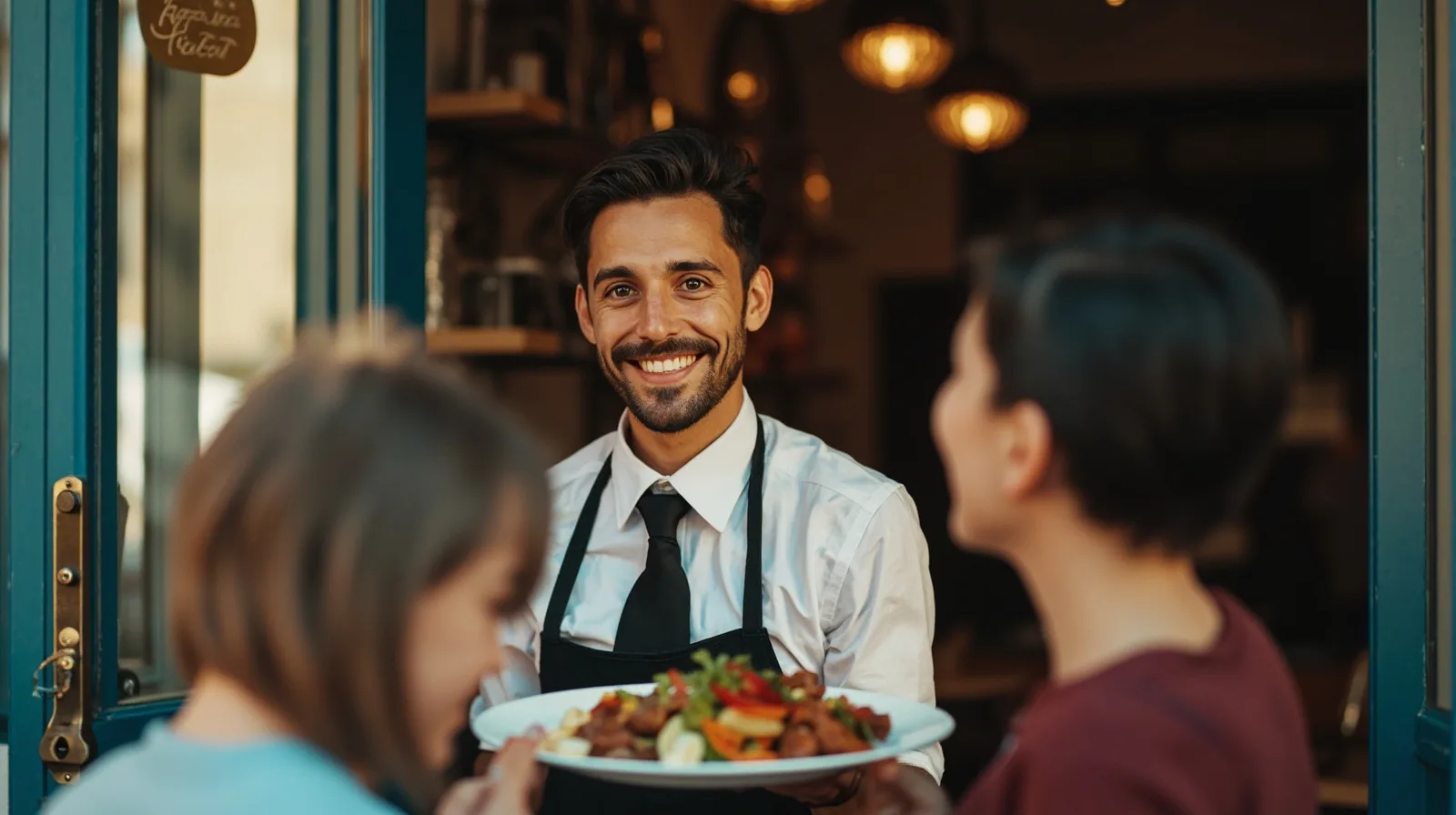
What a simple restaurant website can look like
One-page structure works best when the restaurant has a clear offer and customers usually need a few essential facts. Put a short description and food images near the top, then make the menu, location, hours and contact route easy to find. The Simple restaurant website template gives a practical starting point for that order.
Imagine the fictional restaurant Puente Verde: a welcome, a lunch and dinner menu, the neighbourhood address, opening hours, then a phone number and booking link. The page should read like a helpful answer sheet, not a list of features. Visitors should not have to hunt for basic information.
The Simple restaurant template has one page by default, and its default content covers the menu, location and hours. That starting content differs from sections you add later. It is available on Free. Browse other website templates only if you need a different visual direction; for a small local restaurant, clarity usually matters more than extra pages.
- Start with the restaurant identity and a short description of the food or service.
- Place the menu where a customer can read and compare it without opening another document.
- End with one obvious enquiry action and a second option for people who prefer another channel.
Organize the menu, location, hours and gallery
The menu section should answer what the kitchen serves, not catalogue every possible detail. Use recognizable groups, describe dishes clearly and include prices only if the business wants to publish them. When the offer changes, edit the hosted page rather than creating a new page; the same website address can show updated content.
Location and hours are live operating information. The restaurant template already includes them in its default content, so check those fields whenever opening times or the address change. On Free, ordinary Text sections can describe services or past work, while Gallery can hold photos. These flexible blocks are not premium layouts.
Before publishing, read the page as a customer would. Confirm that the menu is understandable, hours include the relevant days, the location is easy to identify and every image has a purpose. Remove decorative sections that do not help a customer decide. The builder lets you add and arrange supported sections with text, images, services, contact details and links.
- Use the Restaurant menu section for the offer, then add explanatory Text only when it removes doubt.
- Check location and hours after every seasonal or operational change.
- Use Gallery for food, people and atmosphere; keep the order consistent with the page.
- Test the published link on a phone before sending it to customers or printing a QR.
Make contact and reservation expectations clear
Restaurant templates can provide phone, email, WhatsApp and external booking links for enquiries. Each action opens the relevant external channel, so wording should tell people what will happen. QREasy does not provide a verified native contact form or enquiry submission inbox; do not promise that page messages will arrive in a central inbox.
A phone call, email or WhatsApp message is an enquiry, not automatically a confirmed reservation. An external booking provider may confirm reservations under its own rules, and its availability, confirmations or other functions belong to that provider. If the business uses an external form, present it as a link to that separate provider, not a native QREasy form.
For fictional Café Marisol, show a phone number, WhatsApp link and booking link, with a sentence saying which service handles table requests. Do not advertise the page as native appointment scheduling, calendar availability, inventory, automated confirmations, ordering, checkout, payment processing or a property CRM. Those tasks need a separate business process.
- Phone: offer it for quick questions and people who prefer calling.
- WhatsApp or email: use the channel the team already monitors.
- External booking link: name the provider’s role without promising QREasy manages reservations.
Update the web and keep the QR useful
Choose the QR destination before printing. A static URL QR contains a fixed URL, yet the content served at that URL can change. If you replace a hosted webpage or PDF at the same address, the same static QR can continue to point to it. Only changing the encoded URL requires a new static QR. This is different from a QR containing embedded static vCard data.
A dynamic QR uses a managed redirect whose destination can change without reprinting, subject to plan limits. A hosted website does not require a dynamic QR merely to edit its content. Neither kind guarantees scanning on every device, so test the final URL, print size and contrast in the intended location. The QREasy QR code generators can help create the destination first.
For a table card, publish the page, choose the URL QR, test it on a phone, print it, then update the page at the same address when the menu or hours change. A website-linked Wallet card uses a QR that encodes the website URL and opens it through the phone browser; the site is not running inside Wallet. For more advice, see the practical small-restaurant template guide.
- Static URL: keep it stable for content edits without reprinting.
- Dynamic redirect: change the destination without reprinting, within plan limits.
- New print: make a new static QR only when the encoded URL changes.
- Final test: check the actual phone and intended viewing conditions.
Choose a plan and review the publication checklist
Use the QREasy plans comparison to match the plan to the restaurant’s publishing pattern. The first one-page website and contact Wallet cards are free; website-linked Wallet cards are included with Lite SME or Business. Relevant differences include the number of websites, pages per website, dynamic QR allowance, analytics history and access to premium section types.
The listed prices are EUR 0.00 for Free (monthly and annual), EUR 2.99 monthly or EUR 28.70 annually for Lite SME, and EUR 9.99 monthly or EUR 95.90 annually for Business. Review section access too: Restaurant menu, Links, Products, Gallery, Text, Contact, Social, Save Contact and Events are free; premium blocks and editorial layouts or image sliders require Lite SME or Business to publish.
Free includes one website of up to one page, one dynamic QR code, unlimited static QR codes and seven days of analytics history. Lite SME includes three websites with up to four pages each, 50 dynamic QR codes, unlimited static QR codes and 90 days of analytics. Business includes 33 websites with up to ten pages each, 357 dynamic QR codes, unlimited static QR codes and 90 days of analytics. Premium content may be drafted before upgrading.
- Choose Free for a first one-page site and contact Wallet cards.
- Choose Lite SME when you need more sites, pages or a website-linked Wallet card.
- Choose Business for a larger publishing footprint and more dynamic QR capacity.
- Before publishing, test navigation, contact links, hours, section access and the QR destination.