Match the details to your role at the event
Your role at the event shapes which follow-up a recipient can act on. As the listing agent for a property under auction, use the notes field to signal what you represent, for example "listing agent for the project here" so a bidder knows which property you can answer for. As a buyer's agent, the notes field can hint at your brief, such as "representing a buyer in a named area" so the right bidder decides whether to follow up. If you are a private buyer or an onlooker, keep the card lean so the follow-up you invite is the one you actually want. The same seven form fields apply in all three cases; what changes is how you use the notes and whether the website field carries your agency address.
Stay inside the seven form fields
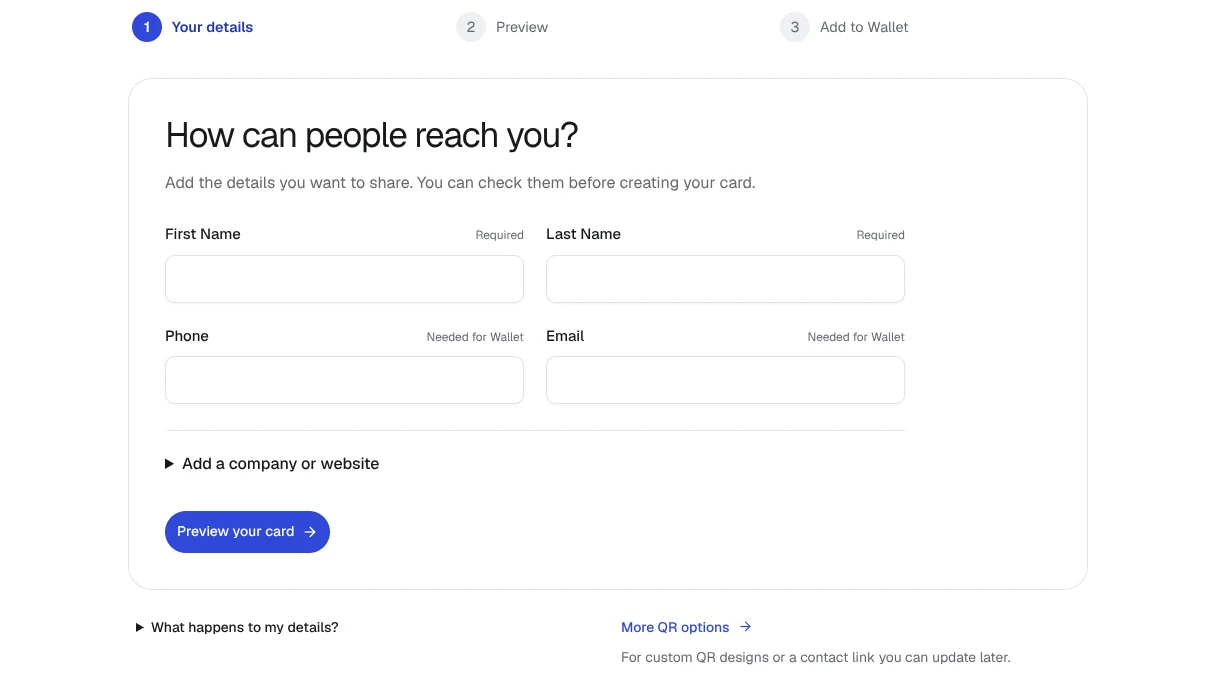
The contact form has seven slots that map directly to the introduction moment. Notes are plain text, not a structured social profile, so a job-title badge, a role badge, or a social handle has no dedicated field. If you want to point at a profile, place its address in the website field or write the full URL into the notes. After filling the slots, review them once against the role you plan to signal at the event, so the card and the notes field agree with each other.
- First name
- Last name
- Company (the company-name line, not a postal address)
- Phone
- Email
- Website
- Notes (free text)
Leave property specifics for the follow-up
Property addresses, viewing times and appointment logistics are tied to a specific listing or appointment, so a follow-up message, email, WhatsApp message or a dedicated property page can carry those details instead. A small QREasy website can host that property-specific content with photos and links updated at the same web address. Keeping the contact code as your reusable professional identity can make it easier to handle follow-up about a particular property in the agreed communication channel, without tying the card to a single listing.
Reuse an existing card if it still fits
A static vCard QR embeds the contact details at generation. Updating those embedded details requires a new code, which makes the code a reusable professional contact identity rather than a fresh card per encounter. Keep an existing card if your name, company, phone, email, website and notes still match how you work today. Generate a new code only when something has actually changed: a new agency, a new direct line, a new website address, or a note that no longer describes your role.
Plan how the recipient saves your details
The recipient scans your code with a compatible phone camera or QR reader, reviews the contact card, and chooses whether to save on their own device. Compatibility is not guaranteed across every camera or reader, and the recipient's own confirmation determines whether the contact is actually saved. Do not promise automatic saving, do not count taps, and do not quote a fixed number of seconds. The realistic description is: scan, review, and choose to save.
Generate and download the static contact code
Open the free QREasy contact QR generator at /en/vcard#qr-generator, then choose More QR options to open the seven-field form at /en/vcard?mode=qr. Fill the seven fields with the details you have agreed to share. The basic code is generated in the browser, then you can download it so it is ready to share. A worked illustration: first name Anna, last name your surname, company your agency name, phone your direct line, email your work email, website your agency URL, and a short note such as "listing agent for a current project; happy to share the exposé on request." Download the image before the event so you can show it on a phone, print a copy, or send it in a message when live scanning feels awkward.