Decide whether the counter needs its own code
If your restaurant already prints a WiFi QR for the dining room, couriers walking up to the counter and customers waiting for takeaway may not be able to see or reach that code from where they stand. Before placing anything, walk through a typical pickup moment and check what the courier or waiting customer can see. If the dining room's code is mounted at table height on a wall, couriers may not see it without stepping inside. If it sits at counter height facing the dining room, couriers approaching from outside may struggle to read it. A short check on a busy evening can tell you whether people ask staff for the WiFi or find it themselves, and whether a separate counter code is justified.
Choose a placement and format that suit couriers and waiting customers
Pickup areas vary, so placement depends on your counter layout. Some readers place the code on the customer-facing edge of the pickup shelf so waiting customers can scan it while their order is being packed. Others put a mirrored sticker on the staff side of the counter so couriers approaching the pickup point can scan before they reach the window. A practical choice is to mount a small card on the wall behind the counter at couriers' eye level as they walk up. What matters is that the code faces the people who need it without becoming part of the dining room view, and that it does not overlap with menus, order tickets, or signage already at the counter.
The counter environment is busy and can be exposed to spills, so format matters. A laminated card on the pickup shelf is visible to waiting customers and can be wiped clean. A laminated sticker on the counter front is fixed in place and harder to move. A printed slip handed out by staff on request lets you control who gets the code, which can be useful if you want couriers to use it without making it visible to everyone in the dining room. Whichever you pick, keep the print at a size where the QR is scannable from about 15 to 20 centimetres away under the counter's lighting, and consider a matte finish to reduce glare from overhead lights.
Fill-in template for the counter WiFi card
A ready-to-use template for your printed card:
- Network name: [Counter WiFi]
- Password: [staff password]
- Security: WPA/WPA2
- Print a laminated card for the pickup shelf facing customers and a mirrored sticker on the staff side facing couriers
Generate the WiFi QR with the free QREasy tool
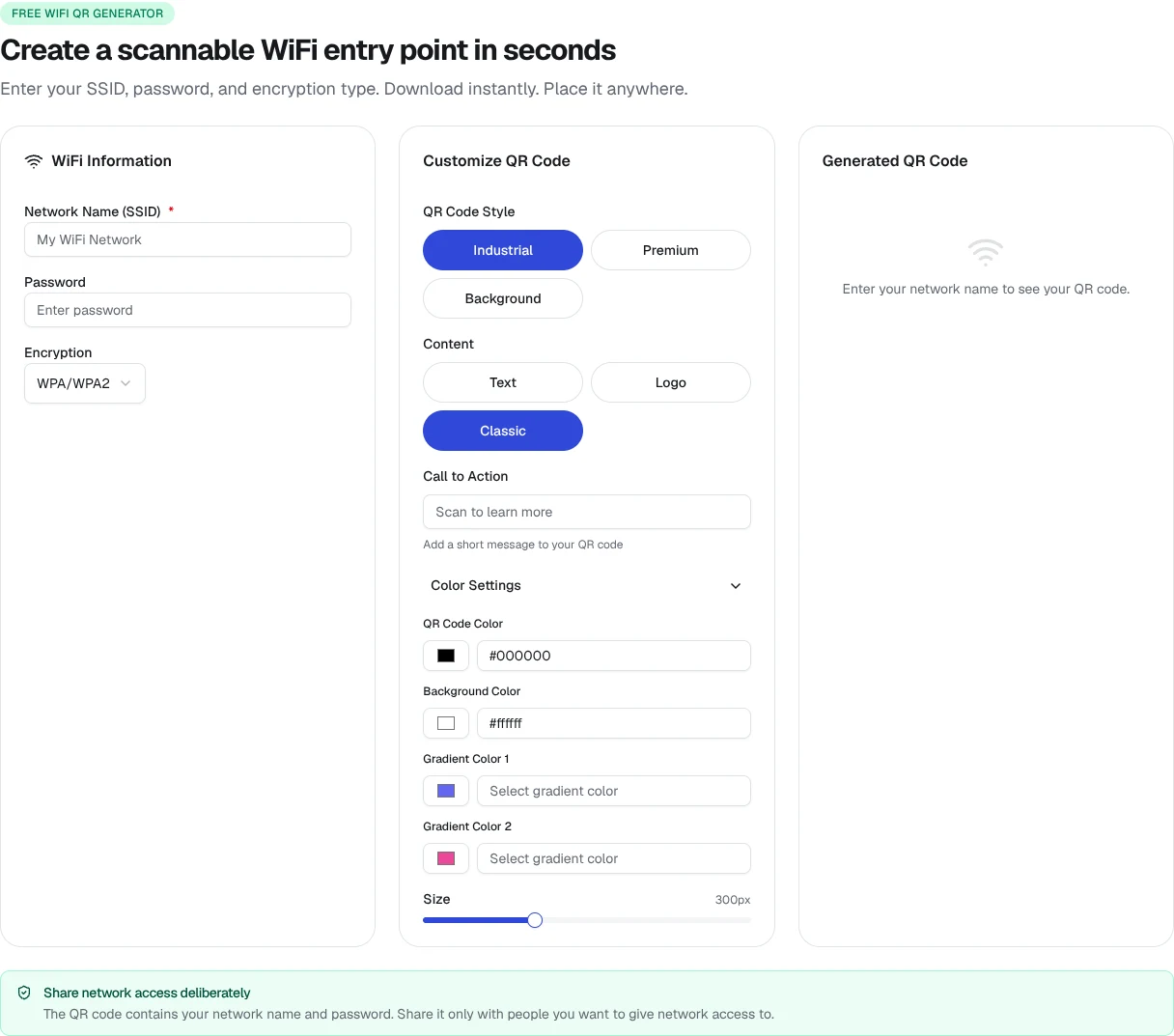
The single setup step is to produce the image. Open /en/wifi and enter your restaurant's network name, password and security type, then download the generated image. The free WiFi QR tool is part of QREasy's free QR tools, so you can produce the code without taking out a paid plan. If you decide to print two copies, one for couriers and one for waiting customers, generate the code once and print the same image twice rather than creating two separate entries. Once printed, test the code with a phone from the expected scanning distance to confirm it works before placing it at the counter.
Keep the printed code useful over time
Because the network details are embedded in the WiFi QR, any change to the network name, password, or security type means reprinting the code. A practical way to keep the counter code accurate is to record the current details near the router or in your operations folder, so when staff change the password they can flag that the counter WiFi QR needs reprinting. You can also leave a printed reminder near the printer or in the manager's handover notes. The free WiFi QR tool at /en/wifi accepts updated entries, so generating a replacement is straightforward once you know the new details.