Choose the template and the right plan
Start by opening the Weddings & events website template preview. It is a premium, three-page template for sharing celebrations, planning details, and availability information. Look for a visual structure that suits your brand, then consider how you would fill each page. The preview represents a multi-page site, not a one-page offer, and it is not a reservation system.
Template access and Wallet access should be decided separately. The premium template requires Lite SME or Business whether or not you create a Wallet card. Free includes Contact Wallet cards, while a Wallet card that opens a QREasy website requires Lite SME or Business. Do not treat permission to use the template as a description of what a Wallet card does.
Plan limits also shape the result. Free allows one website with up to one page, so it cannot publish this three-page premium template. Lite SME allows three websites with up to four pages each; Business allows 33 websites with up to 10 pages each. Compare QREasy plans and pricing according to the number of sites, pages, and Wallet features you need.
- Start with Lite SME for one event business that needs the template and several pages.
- Choose Business when you manage several websites or need longer multi-page sites.
- Add a Wallet card only if saving details or opening the site from Wallet supports your contact journey.
Shape the three pages and add useful sections
The template starts with editable Text, Links, and Contact content, and it contains three pages. These are starting blocks, not fixed purposes for every page. Treat the layout as a framework: decide what a visitor should understand first, what proof they need next, and where they should make contact.
A practical arrangement is to use page one for positioning and an introduction, page two for services, process, and work, and page three for contact and availability. This is a recommended structure, not a claim about prebuilt scheduling pages. Keep essential navigation visible so visitors can move between all three pages without mistaking the site for a booking portal.
Useful free section types include Text, Gallery, Contact, Links, Social, Save Contact, Events, and Products. Text and Gallery can describe services and past work on a Free site, although this premium template itself needs a paid plan. Service Grid, Profile, Team Grid, Testimonials, Process, FAQ, credibility strips, locations, before-and-after, premium galleries, and editorial image layouts require Lite SME or Business to publish. They can be drafted before upgrading, but not published on Free.
- Page one: concise Text, strong Gallery images, and a direct contact route.
- Page two: services and past work in Text and Gallery, plus paid proof blocks when useful.
- Page three: Contact, links, social profiles, and a carefully labeled external booking link.
Present the business with credible content
Write from the visitor’s perspective: who you serve, the kinds of celebrations you handle, and what the visitor can ask next. Use plain, specific language instead of generic claims. If you offer scheduling, payment, or bespoke services, describe your own business process; the limitation is only that QREasy does not implement those functions natively.
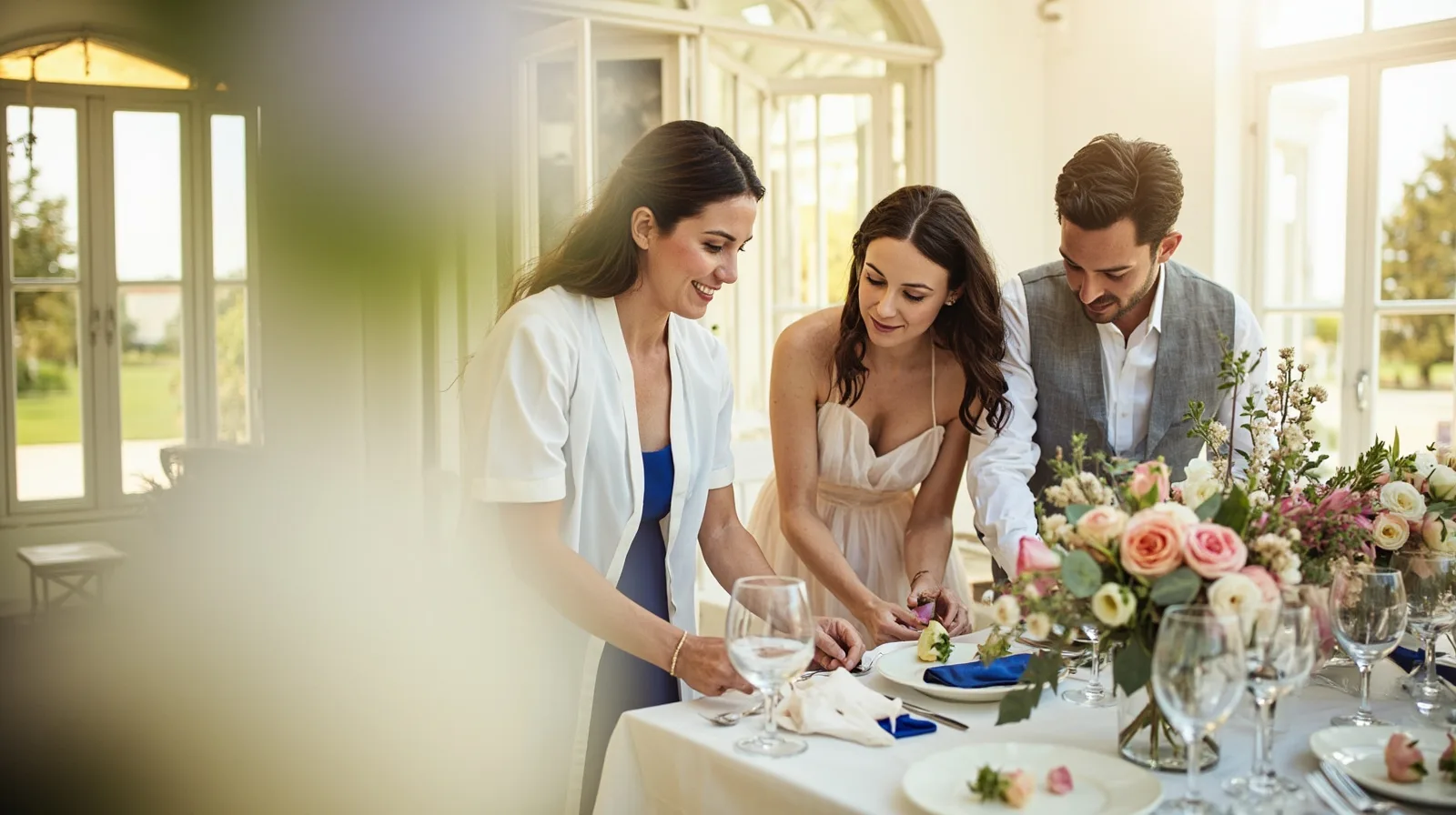
Images do much of the work. Show real setups, flowers, table details, candid moments, venues, and people in action. Use Gallery for ordinary photos and reserve premium image or gallery treatments for content that genuinely needs them. Do not invent testimonials, awards, client names, or results; a polished template cannot make unsupported claims credible.
- Add a short service list covering the scope, location, and next step for enquiries.
- Use a Process section to explain discovery, planning, preparation, and event-day support.
- Add an FAQ for accessibility, timing, travel, suppliers, and booking questions.
- Keep imagery varied with wide venue views, detail shots, and people interacting.
Route enquiries without presenting native booking
The Event template starts with editable Text, Links, and Contact rather than a dedicated registration or scheduling system. There is no verified native contact form or enquiry submission inbox in QREasy, and the website does not natively provide appointment scheduling, calendar availability, automated confirmations, ordering, checkout, or payment processing. A visitor who needs a confirmed reservation must continue into a channel you control.
Use the contact details and links to route requests: phone for urgent questions, email for detailed briefs, WhatsApp for quick conversations, and an external booking link when the business already uses a separate provider. A separate form can appear only as a link to that provider. The provider may confirm bookings under its own rules, but an email, message, or phone request is not itself a confirmed reservation.
Label each route so expectations are clear. For example, Ask about a date directs someone to email or WhatsApp; Request a booking opens the external provider; Call the studio points to a phone number. This keeps QREasy in its role as the editable presentation and contact layer. For a related example, see this practical QREasy guide for wedding organizers.
- Use Ask for availability for questions and Request a booking for the external service.
- Never imply that sending a message alone reserves a date.
- Confirm the destination, wording, and ownership of every external form or booking link before publishing.
Connect the website, Wallet card, and QR code
A website-linked Wallet card and a site QR code are two different access paths. With a website-linked Wallet card, recipients can review and save contact details or open the QREasy site. Website-linked cards require Lite SME or Business, while Contact Wallet cards are included with Free. The card QR encodes the website URL, so scanning it opens the site in the phone browser rather than running the site inside Wallet.
Google Wallet also includes a Visit Page link. Keep the web address stable when possible: QREasy can publish updated content at the same URL, so visitors and existing QR codes can reach the revised site. Website access needs an internet connection. After publishing, open all three pages, test every contact route, and check that the site remains coherent on a phone before sharing it.
Choose the QR type by destination. A static URL QR contains a fixed address; content there can change without reprinting, but changing the encoded URL requires a new static QR. A dynamic QR uses a managed redirect that can change within plan limits. Editing a hosted page does not require a dynamic QR. Explore the QR code generators, then test the final route on expected devices because no QR type guarantees scanning everywhere.
- Use a static URL QR when the published site address will remain unchanged.
- Use a dynamic QR when you need a managed redirect and your plan allows it.
- Keep the website QR focused on its URL rather than embedding static contact data.
- Test both the site and QR destination after every significant update.
- Add a Wallet Visit Page or website-linked card only when it improves the contact journey.