Information to gather before drafting the offer page
Before writing a headline, collect the campaign name, start date and exact end date. Check the treatment name, regular price and campaign price against the offer you intend to provide. If you use an external booking service, have its treatment link ready, along with your regular services page and a phone, email or WhatsApp contact route. Decide which studio details to include in Save Contact. Use placeholders while drafting, then replace them with checked details before publishing.
- Campaign name, start date, end date.
- Treatment name, regular price, campaign price.
- Link to your external booking provider for the treatment.
- Link to your always-on services or menu page.
- Phone, email or WhatsApp link for direct enquiries.
- Contact details to store in the Save Contact section.
Where to place the end date and how to phrase the limited-time window
Place the end date beside the offer heading and repeat it in the opening Text section if that suits your layout. For a draft, try 'Save [amount] on [treatment] until [end date]'; replace the placeholders and check the saving before publication. 'Offer ends [end date]' is another option when no saving needs to be stated. Preview the page on a phone to see where the date appears in your chosen layout. Avoid invented scarcity or a claim that the deadline will extend automatically.
Always-on services and contact paths to include below the offer
Below the offer, add links to your regular services and a direct enquiry route by phone, email or WhatsApp. Include your external booking link if you use one. In QREasy, these destinations can sit in a Links section; Save Contact can provide your studio details as a contact file. Check that each destination is still appropriate after the campaign ends. The links open the chosen channels, while booking confirmation follows the process used by your studio or external provider.
Wording to leave out of the offer page
Match every promise to the offer and the booking process you actually operate. Do not write 'instant confirmation' merely because the page has a booking link, or 'only today' when the stated window lasts a month. If places are limited, state only a limit the studio can verify and manage. A phone, email or WhatsApp enquiry is not itself a confirmed appointment; explain how your studio or booking provider confirms it. Keep treatment descriptions within verified information about your services, without inventing suitability or health guarantees.
Planning how the page and QR destination change after the end date
Prepare an ended-offer message before launch, but publish it only when the campaign ends. Edit the Text section to state that the offer has ended, and check the regular services and contact links. If the page keeps the same address, a static URL QR pointing there can stay in use. Changing a dynamic QR destination is a separate, optional action when you want a different address: sign in, open the account menu, choose My QRs, select the code, choose Edit, change the destination, then use Update QR Code. This changes the managed destination without reprinting the code; it does not schedule the campaign ending for you.
Creating the offer page and dynamic QR in QREasy
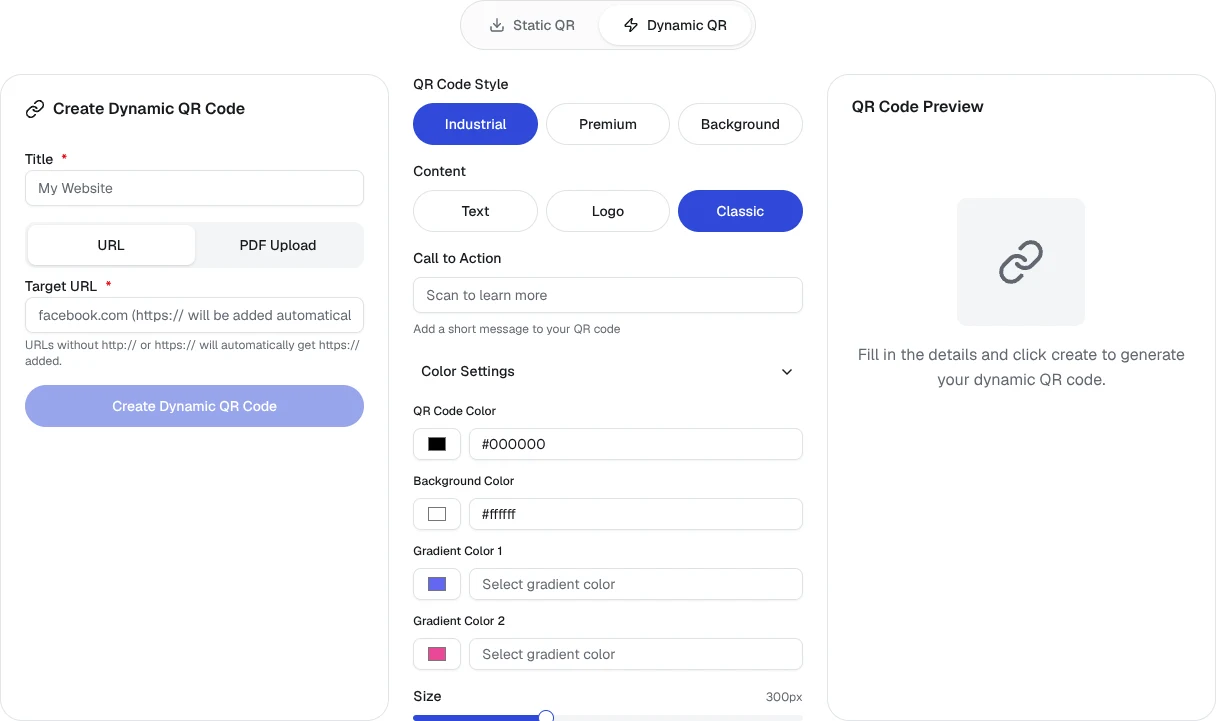
For a QREasy website, the free section types include Text, Links, Contact and Save Contact. Add the sections you need for the offer and contact routes; using these section types does not make a premium template or other premium sections free. Check the publishing requirements of your chosen design. For the printed campaign QR, use the dynamic URL creation form if you need to change its destination address later, subject to your plan limits. Enter the published offer URL, create the code and test the destination before printing. After the campaign, check the page content first, then change the QR destination through My QRs only if your planned next step uses another address.