Start with the right page and plan
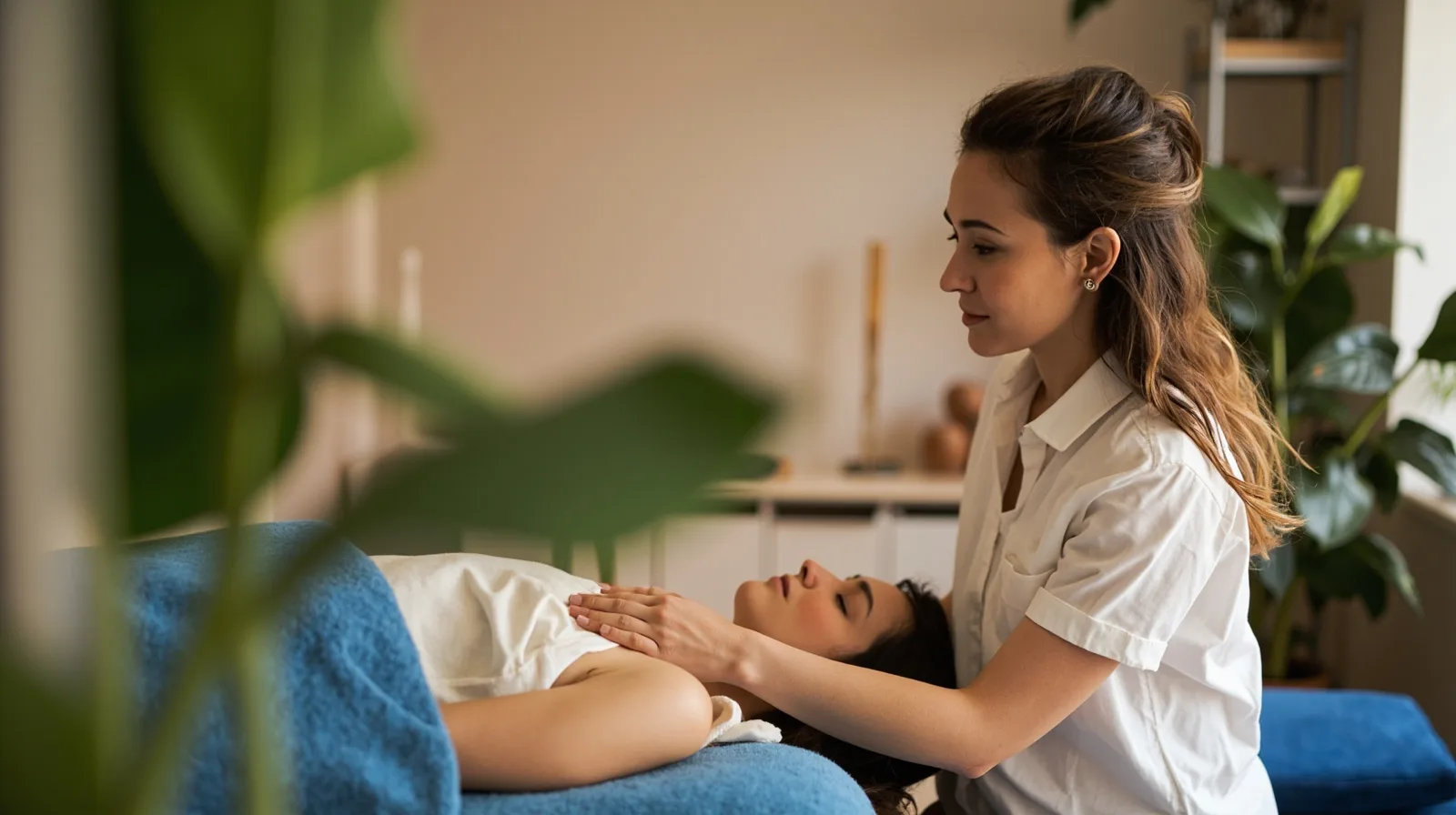
Begin by reviewing the Massage & wellness website template. Its default contains three pages, so evaluate it as a multi-page starting point rather than a single-page landing page. Before editing, list the treatments you want visitors to understand, the business location or service area, and the action you want them to take next. This keeps the page focused on enquiries instead of trying to present every detail at once.
Then compare QREasy plans. The Massage & wellness template requires Lite SME or Business to use and publish; that requirement exists independently of whether a Wallet card is created. Free includes a contact Wallet card and the first one-page website, but it cannot publish this premium three-page template. If you need a simpler alternative, ordinary Text, Gallery, Contact, and Links sections can support a basic Free website.
- List the treatments that deserve priority rather than every service you could eventually offer.
- Define the visitor’s next step: an enquiry, a call, or an external booking flow.
- Confirm the template plan before editing or publishing.
- Keep the center name, location, and service area consistent across the site.
Build a clear three-page information path
A useful three-page structure gives each page one job and lets visitors move naturally from orientation to treatment details to contact. You control the final arrangement of supported sections, so remove anything that does not help a prospective client decide. Keep the center name, location or service area, and core treatments visible early rather than hiding them behind a long introduction.
These page assignments are an editorial recommendation, not a statement that the template includes a scheduler or fixed booking system. If you prefer a different starting point, review other website templates, then keep one coherent path regardless of the template. Navigation should let someone find a treatment, understand the next step, and contact the business with minimal scrolling.
- First page: introduce the center, explain the approach, and link to the priority treatments.
- Second page: give treatment details, preparation notes, and representative photographs.
- Third page: add contact details, visit information, and the external booking link.
Present treatments, writing, and photographs
Write each treatment in plain, specific language. Explain whom it is intended for, what a session involves, how long it usually lasts, and what preparation the visitor should discuss before booking. Use business-specific details such as the location, travel considerations, and the kind of session you offer. Avoid vague claims or medical promises; the purpose is to help people choose the right enquiry, not diagnose or prescribe treatment.
On Free, a simpler website can describe services in ordinary Text sections and display photographs in Gallery. Premium section types such as Service Grid, Profile, Team Grid, Testimonials, editorial image layouts, and sliders require Lite SME or Business to publish. The Massage & wellness template already requires a paid plan, but this distinction helps prevent you from drafting a section that cannot go live.
For another example of organizing treatment content, see a practical massage practice website template. Adapt its planning principles to your own services rather than copying claims, images, schedules, or business details that are not accurate for your center.
- Give every priority treatment a distinct name and a concise description.
- State duration and practical details only where you can keep them accurate and current.
- Use photographs of your actual environment, work, or people only with appropriate permission.
- Keep colors, image styles, headings, and service terminology consistent.
Add contact channels and external bookings
Use the supported Contact and Links sections to offer phone, email, WhatsApp, and external booking links. Each action opens the relevant external channel rather than storing the enquiry inside QREasy. Put one primary booking or enquiry action near the main treatment descriptions, and keep a phone or email fallback nearby so visitors are not dependent on a single external service.
QREasy does not include a native customer contact form or enquiry inbox. If you already use an external form, add a link to that separate provider and name it accurately. An external booking provider may confirm reservations under its own rules; QREasy does not determine its functionality, manage appointment availability or automated confirmations, or process checkout and payments. A phone, email, or WhatsApp enquiry is not itself a confirmed reservation.
- Make the primary action consistent across the treatment and contact pages.
- Test every phone, email, WhatsApp, form, and booking destination before publishing.
- Explain that final reservation confirmation comes from the external booking provider.
- State your response hours separately from opening hours or the availability shown by the provider.
Publish and distribute with QR codes and Wallet
After publishing, keep the website address stable. A static URL QR contains a fixed URL, but content served at that same address can change without changing or reprinting the code. Editing a hosted page therefore does not require a dynamic QR. If the destination address itself must change, create a new static QR or use a dynamic redirect, subject to the limits of the selected plan.
Use the QREasy QR code generators to choose an appropriate QR workflow. A URL QR sends the scanner to a web address, while contact-card or vCard information is stored differently; do not treat embedded static contact data as the same thing as a URL QR. Choose static or dynamic according to whether you need a permanent address or a managed redirect, not simply because you plan to edit the website.
Wallet provides another route for sharing. A contact Wallet card can let recipients review and save contact details, while a website-linked card can open a QREasy website. Website-linked Wallet cards require Lite SME or Business. Their QR opens the website through the phone browser rather than running the website inside Wallet, and Google Wallet also provides a Visit Page link.
- Print a website QR where visitors can scan it before or after an enquiry.
- Test every QR on representative phones and in the location where it will be used.
- Keep a static QR when the website address will remain constant.
- Use a dynamic redirect when the destination must be changed centrally within plan limits.
- Do not assume that either QR type will scan successfully on every device.
Review limits and run a final quality check
Review capacity before scaling the promotion. Free permits one website with up to one page, one dynamic QR, unlimited static QR codes, and seven days of analytics history. Lite SME permits three websites with up to four pages each, 50 dynamic QR codes, and 90 days of history. Business permits 33 websites with up to ten pages each and 357 dynamic QR codes; static QR codes remain unlimited on every plan.
Before launch, test the published page on a phone and a desktop browser. Check that every image is sharp, headings and links make sense, contact buttons reach the intended destination, and the external booking provider loads correctly. Ask a first-time visitor to identify the appropriate treatment and next step without coaching. Finally, confirm that the copy does not promise a native QREasy form, internal booking management, or a confirmation workflow that QREasy cannot deliver.
- Open every phone, email, WhatsApp, form, and external booking link.
- Complete a test enquiry with the external provider where appropriate.
- Scan the final QR from the physical location where it will be displayed.
- Verify that a website-linked Wallet card opens the site in the browser.
- Republish after corrections and check the live address again.