What to confirm with the venue about guest WiFi before you book the room
A venue that says "we have WiFi" is the starting point, not the answer. Before you commit to a booking, ask the specific questions that affect a session of a given size and length. The answers shape whether attendees can connect, how many devices they can bring, and what the network is likely to do mid-session.
- Is the guest network separate from any operations network, and is it switched on throughout your booked window?
- Are there per-device or per-room data caps, and what is the cap?
- Do attendees need to accept a splash page or sign in with an email or code each session?
- How many devices can a single attendee connect at once?
- Does the SSID and password stay the same day to day, or does the venue rotate them?
- Is the signal strong enough in the room you are booking, or only in shared areas?
Choose between the venue's posted details and a code you prepare yourself
There are two reasonable approaches, and each suits a different working pattern. Pointing attendees to the venue's posted details works when the venue keeps its access information accurate and visible, and you do not want to maintain a printed card. The trade-off is that you are trusting a third party's signage on the day.
A venue-specific code you prepare in advance, generated once you have the current SSID and password, gives you a single source of truth that travels with your session materials. It can be useful when you run the same workshop at the same venue repeatedly, or when attendees book a week in advance and you want them to arrive configured. The cost is that you are responsible for replacing the code if the venue rotates credentials.
If you want a middle path, send the current details in the confirmation message and print a small card only as a backup for the room.
Put the access information in the session confirmation, not on the morning of the session
Including the WiFi details in the same confirmation message as the date, time and address can give attendees who want to check the network in advance a chance to flag any access issue before they travel. This may help you hear about a problem earlier than on the day of the session.
The exact text you send is something to agree with your own contact, because tone and timing depend on the relationship. A simple opening could read:
"WiFi for the session: [SSID], password [password], valid while the venue's guest credentials remain unchanged. Let me know if you cannot connect from your device and I will bring a printed card on the day."
Replace the placeholders with the current network name, the current password, and any wording the venue has asked you to pass on.
Treat a printed venue-specific code as a snapshot tied to the venue's current credentials
A WiFi QR encodes a specific network name and password. If the venue rotates either value, the code stops working. Treat any printed version as a snapshot: recheck the current SSID and password the day before, and reprint the card if either has changed. The same check applies to a code you saved as an image, since the file itself does not update.
If the venue does change its credentials regularly, the simpler workflow is to send the current details in the confirmation message and skip the printed code altogether. A printed card is most useful when the network is stable and you want a visible reminder in the room.
Create a venue-specific WiFi QR once you have the current SSID and password
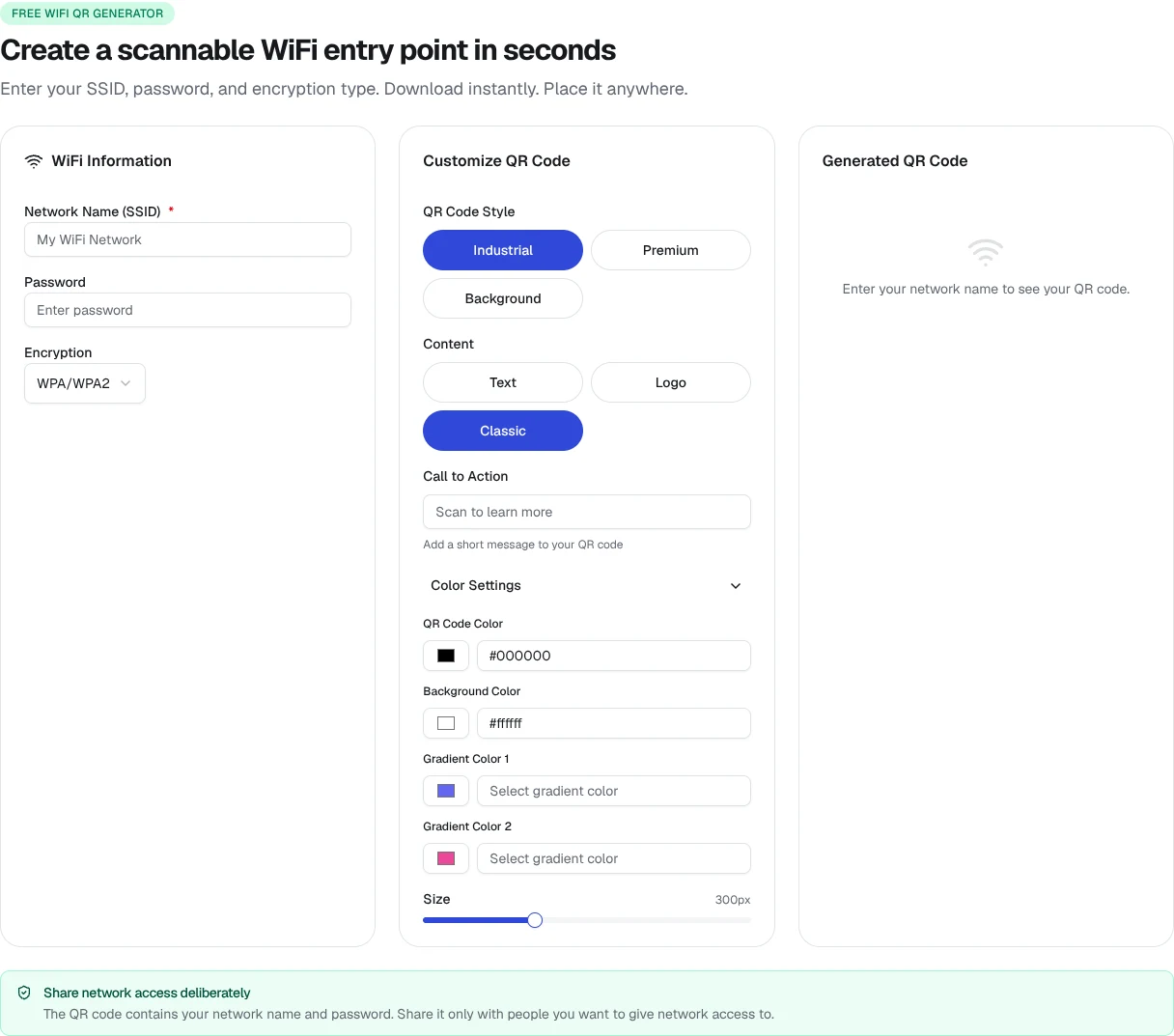
When the network name and password from the venue are confirmed, the next step is a short setup with the free WiFi QR generator. Open the tool, enter the SSID exactly as the venue provides it, enter the current password, and choose the encryption type the venue uses. Generate the code, then download the image. The resulting file can be included in the confirmation message, embedded in a small printed card, or both.
A practical habit is to date the file or the printed card with the month and venue name, so you know at a glance whether it is the current version. Since the QR encodes fixed values, an older copy that no longer matches the network will simply fail when an attendee scans it.
Sample card to set beside the session materials
A small printed card to set beside the session materials can follow this shape:
WiFi for [Session name] at [Venue]
Network: [SSID]
Password: [Password]
Valid while [Venue]'s guest credentials remain unchanged.
Replace each placeholder with the current network name, the current password, and the venue's own wording. Reprint the card if the venue changes either value, and date the card with the month so older copies are easy to spot. A venue-specific WiFi QR can sit beside this text on the same card, so attendees who prefer to scan can do so without typing.