What remote attendees actually need
Remote attendees who want to follow up after a virtual session need a digital copy they can keep. A printed card, a phone held up to the camera, or a tap across a table do not reach a virtual room. What reaches them is an image, link or button they receive in the chat or follow-up email. The realistic options are a vCard QR image, a screenshot or link to your contact Wallet card, or a hosted page Save Contact button. Each relies on the attendee opening the artefact on a compatible device and confirming the save; none can guarantee a saved contact without that confirmation.
Compare the channels that travel in a chat or email
A vCard QR image carries everything in one picture: your contact details as embedded data. The attendee scans it with a compatible phone camera or QR reader and is shown those details, then chooses whether to save. A contact Wallet card image is different: a screenshot or rendered preview of a card you can include in the same message, where the recipient would still need to follow your instruction to add the card on their own device. A vCard QR is the more direct fit if you want scan-and-choose behaviour in a chat or email attachment.
When a hosted page makes a better follow-up
A hosted page you already maintain can carry a Save Contact button that downloads or opens a vCard file using the section's saved details. The attendee taps the button on their own device and the browser or system handles the next step. This is a separate website section, not the standalone contact QR generator. If you already keep a hosted page, pointing attendees there can be simpler than attaching an image; if you do not, attaching a vCard QR is lighter than building a page for a single session.
Prepare the chosen artefact in QREasy
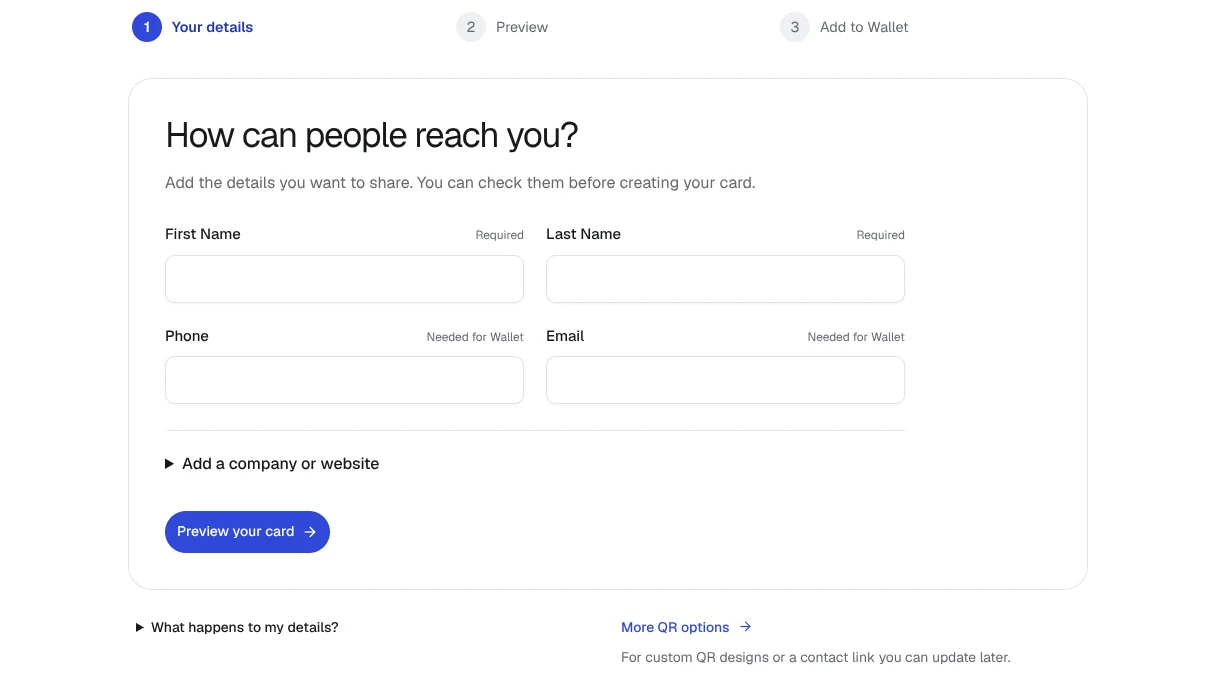
Inside QREasy, three entry points cover the three options above. For a vCard QR image, open the free contact QR generator, fill the supported fields, generate the image and download it to attach. Contact Wallet cards are free and produce a card image you can include in the message. For a hosted page Save Contact section, add the section in your website editor and save your details into it. Pick one option that fits your follow-up format and prepare that single artefact rather than sending all three.
Verify the details that will travel with each option
Before you send anything, agree with yourself what should reach the attendee. A basic vCard QR embeds details at generation, so any later change requires regenerating the image. A hosted page Save Contact section lets you change the section details and serve the new version without reattaching anything. Open the contact generator and check first name, last name, company, phone, email, website and notes. If the artefact is a Save Contact section on a hosted page, confirm those details separately, since the page section does not inherit from the standalone tool.
Write the follow-up note and keep a reply channel ready
When you send a follow-up message that only attaches an image, include a short note naming what you are sharing. Sharing your contact details can open a channel for follow-up; the actual reply conversation is something you run yourself, through email or another channel you already use for client questions. Agree the next step in that reply channel rather than treating the shared artefact as the conversation itself.