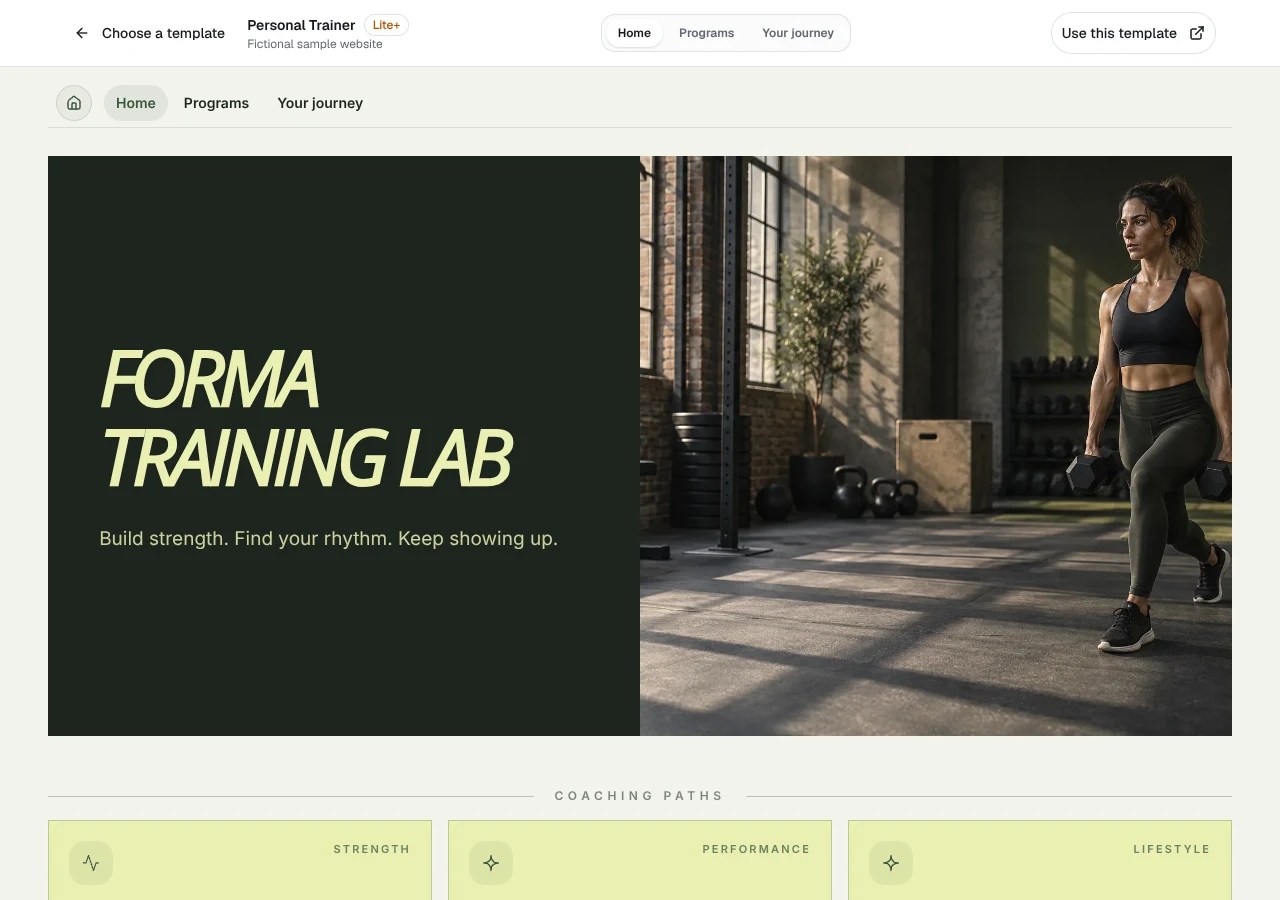
Choose a plan that unlocks the template
QREasy’s Free plan includes one website with up to one page, so it does not unlock the three-page premium Personal Trainer template. Choose Lite SME or Business to publish this template. This requirement applies independently of Wallet creation: a website-linked Wallet card also needs Lite SME or Business, while contact Wallet cards on Free do not grant access to the premium template.
Use the QREasy plans page to compare the current website, page and QR allowances before you begin. A multi-page personal trainer site is therefore a paid-template task, not a limitation caused by adding a Wallet card. If you only need a simple one-page presence, the Free website allowance is a separate option.
The website templates collection helps you review how editable sections are arranged. The Personal Trainer template contains three pages by default, and its sample coaching content is only a starting point. Replace fictional businesses, offers and copy with accurate information for your own service.
- Free: 1 website with up to 1 page; it does not include the premium Personal Trainer template.
- Lite SME: 3 websites with up to 4 pages each; website-linked Wallet cards are included.
- Business: 33 websites with up to 10 pages each; website-linked Wallet cards are included.
Organise the three pages around the client journey
The Personal Trainer template is designed to present coaching, programmes and next steps. A useful fictional three-page arrangement is: Page 1 introduces the trainer and coaching focus; Page 2 explains programme formats and what a typical session involves; Page 3 presents enquiries, contact routes and practical next steps. This is a suggested content model, not a list of mandatory sections.
Keep the first page focused on recognition and relevance. Explain the people or goals you work with in plain language, then use the second page for details such as one-to-one coaching, group sessions, programme structure, duration and what clients should prepare. Only describe services you actually provide, and avoid unsupported claims about outcomes.
Use the third page to make the next action unmistakable. Add a short explanation of how new clients should enquire, followed by the relevant contact details or links. For a fuller editing walkthrough, use the Personal Trainer Website Template: A Practical Guide, then adapt its fictional examples rather than copying claims that are not true for your business.
Add contact routes for enquiries and bookings
Build the contact area with the channels you genuinely use. QREasy supports contact details and links, and a phone link, email link, WhatsApp link or external booking link can send visitors into the corresponding external channel. Choose the clearest route for each offer rather than adding every possible button to the page.
Do not present a generic contact form as a QREasy feature. There is no verified native customer contact form or enquiry submission inbox in the supplied website functionality. If your business already uses a form hosted by another provider, you may include that provider’s link, but make clear that it is a separate service and describe it only according to how that provider actually works.
Keep enquiries and reservations distinct. Clicking a phone or email button opens a communication channel; it does not by itself confirm a session. A linked booking provider may accept and confirm bookings under its own rules. QREasy does not determine that provider’s functionality, so do not claim native appointment availability, automated confirmations, inventory, checkout, payment processing or scheduling.
- Phone: invite a call and display the number clearly.
- Email: provide an address for questions and brief enquiries.
- WhatsApp or external booking: link to the separate channel and describe the handoff accurately.
Support the page with editable content and images
QREasy hosts editable small websites. You can add and arrange supported sections containing text, images, services, contact details and links, then publish the result. Ordinary Text sections can describe your coaching services and past work, while a Gallery can display photographs. These are content sections, not evidence that QREasy supplies scheduling, client records or a booking system.
Choose free sections such as Text, Gallery, Contact, Links and Save Contact when they meet the job. Premium section types, including Service Grid, Profile, editorial layouts and image sliders, require Lite SME or Business to publish. You may draft premium sections before upgrading, but they cannot be published on Free. Plan the hierarchy before adding extra blocks.
Rewrite the template’s existing sample copy first, then add only the sections that are missing. A section you add is distinct from a default section that already appears in the template. Use relevant photos with permission, write specific service descriptions and keep contact details visible without crowding the page. For services that do not need a dedicated premium block, ordinary Text is often enough.
Publish and share the contact page
After the final edit, publish the website and note its address. The same website address can display updated content later. A static URL QR code encodes that fixed address; if you replace the content served at the same URL, the existing code still points to the updated page. If the encoded URL itself changes, create a new static QR code. This is different from embedding static contact data in a QR code.
Use the QREasy QR code generators to create a code for your published address. A hosted website does not need a dynamic QR merely because its copy or images will change. Dynamic QR codes use a managed redirect and have plan limits, so choose one when you specifically need a redirect whose destination may change; neither QR type guarantees scanning on every device.
On Lite SME or Business, you can also create a website-linked Wallet card. Its QR code encodes the website URL, so scanning opens the site in the phone browser rather than running the website inside Wallet. Recipients can review and save contact details, and Google Wallet also provides a Visit Page link. Test the site and QR on the devices you use, keep a direct URL as a fallback and remember that website access needs an internet connection.