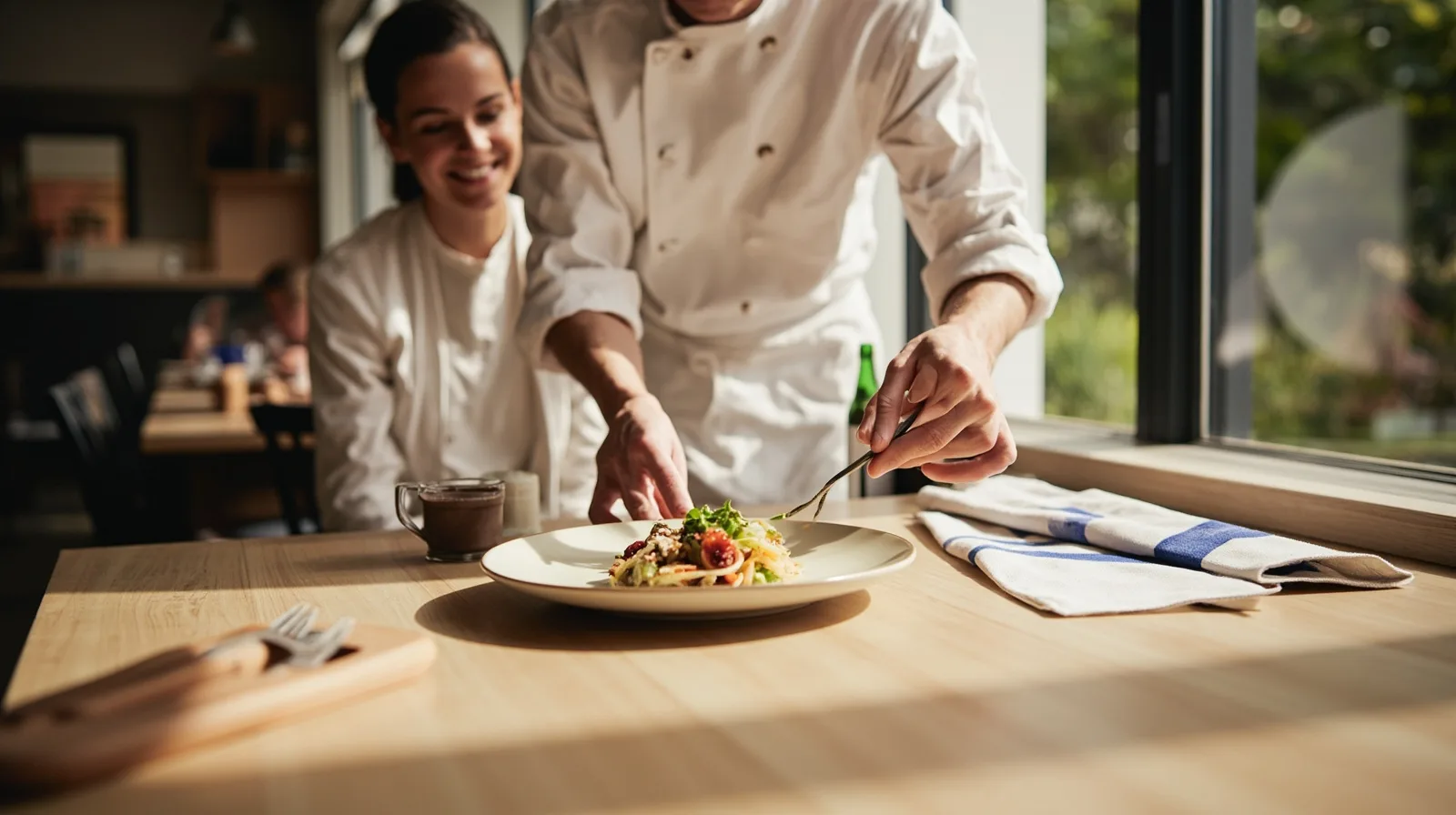
Start with a four-page editorial map
The Restaurant template in QREasy contains four pages and is designed to share a menu, location, and hours. Preview the Restaurant website template before writing copy so you can distinguish the template’s starting structure from the editorial sequence recommended here. The four-page allocation below is a content-planning framework, not a claim that every section is automatically present on a particular page.
Because this is a premium template, creating and publishing it requires Lite SME or Business. Compare the available limits and features on the QREasy plans page before you begin. The template requirement is separate from any decision about a Wallet card, and a useful content plan should not depend on creating one.
- Page 1 — Menu: lead with the restaurant menu, current specials, ordering notes, and the clearest path to a reservation or contact channel.
- Page 2 — Restaurant story: explain the concept, service style, signature dishes, and any current offer using concise text and a small image set.
- Page 3 — Gallery and experience: show the dining room, outdoor area, team, dishes, and private events through a deliberately ordered Gallery section.
- Page 4 — Visit and contact: consolidate address, directions, hours, contact actions, social links, and links to external services.
Page 1: Build the menu around choices
Start the menu with the information a guest needs to decide, not with a long history of the business. Organise categories in the order guests commonly explore them, such as breakfast, lunch, dinner, drinks, and desserts. For each dish, include a clear name, short description, and current price; add size, portion, or add-on details only when they help a choice.
Create a small preparation checklist for every item: confirm the spelling, description, price, availability, and any dietary or allergen statement supplied by the kitchen. Do not guess at allergen information. The Restaurant menu and Products sections can present dishes and specials, while ordinary Text sections can explain service periods, advance ordering, or the process for requesting a table.
Use Gallery images to show a small number of representative dishes rather than one image for every plate. Choose photographs that match the written descriptions, and update seasonal items together across the menu, Products section, and captions. If ordering is handled elsewhere, add a clearly named link to that service and state where the guest will continue; QREasy will not collect the order or process payment.
- Menu categories: use guest-friendly labels and keep a consistent order across printed and online versions.
- Dish entries: pair concise descriptions with current prices and verified portion or dietary details.
- Specials: identify limited-time items, their availability window, and whether they replace a regular dish.
- Ordering: link to an external ordering provider if needed and explain the handoff; do not imply native checkout.
Pages 2 and 3: Tell the story and show the experience
On Page 2, write a compact introduction to the restaurant: its concept, style of service, ideal occasion, and a few signature preparations. If the restaurant offers a lunch set, tasting menu, seasonal promotion, or other offer, state what is included, when it applies, and any booking condition the business has confirmed. Keep promotional language separate from permanent menu facts so old offers are easy to remove.
Page 3 should create a visual account of the experience. Arrange Gallery images in a deliberate sequence: exterior or entrance, room, team at work, signature dishes, and private dining. Use short captions to explain what the guest can expect. If accessibility, parking, group size, or event arrangements matter, place those details in Text or Links rather than hiding them in a photograph.
Before adding more sections, browse the website templates for layouts that support the story and gallery approach. QREasy’s Free website sections include Text, Gallery, Links, Contact, Social, and Restaurant menu, among others. Premium blocks such as sliders, service grids, testimonials, or editorial image layouts have separate plan requirements, so choose them only when they add useful, verified information.
- Story opening: identify the restaurant’s concept and the type of visit it suits.
- Offer: state inclusions, dates, availability, and any confirmed booking condition.
- Service facts: explain group bookings, event formats, or access details without unsupported claims.
- Gallery sequence: lead with the setting, then service and food, using current photographs.
Page 4: Add location, hours, bookings, and contact
Make Page 4 a practical visit page rather than a second menu. Include the full address, map or directions link, public transport and parking notes, opening hours, service periods, and last-order information when applicable. Add exceptions for holidays or temporary closures close to the relevant date. A link can open a map or another external service, but the page should still provide the core details in plain text.
For enquiries, QREasy restaurant templates can use phone, email, WhatsApp, and external booking links. These actions open the relevant external channel; there is no verified native customer contact form or enquiry-submission inbox. A phone call, email, or WhatsApp message is an enquiry, not automatically a confirmed reservation. An external booking provider may confirm a table under its own rules, which QREasy does not determine.
Ordering, payment, scheduling, automated confirmations, availability, and customer records are not native QREasy website functions. A restaurant may still offer those services independently through its own systems or an external provider. When you add such a link, name the destination, tell guests what they can do there, and avoid wording that implies QREasy receives orders, holds tables, or processes transactions.
- Address: use the complete venue address and a separate directions link.
- Hours: show standard service periods and update exceptions promptly.
- Contact: label phone, email, and WhatsApp actions with their purpose.
- Reservations and services: link to external providers and name what happens after the guest leaves the site.
Connect QR codes, update content, and publish
Build the site in QREasy by choosing the template, adding and arranging supported sections, entering the approved copy and images, and publishing. A published website needs internet access, and its address can continue to display later updates without creating a new address. Before publishing, check every price, hour, link, image, reservation instruction, and external service on mobile and desktop.
Use the QREasy QR code generators to decide which QR approach fits the rollout. A static URL QR encodes a fixed address, so the hosted webpage can change at that address without changing or reprinting the code. If you change the encoded address itself, create a new static QR. A hosted website does not require a dynamic QR merely because its content will be edited.
A dynamic QR uses a managed redirect whose destination can be changed without reprinting, subject to plan limits. Neither static nor dynamic QR codes guarantee scanning on every device, so test the code with the devices and camera apps your guests use. The restaurant QR should open the website through the phone browser, not a site running inside a Wallet. Keep a fallback link for the menu in case a code is damaged or blocked.
- Before publishing: complete a link check, price check, mobile preview, and accessibility review.
- Static QR: print after the final website address is confirmed; later copy edits do not change it.
- Dynamic QR: use only when redirect control and plan limits justify the extra layer.
- After launch: update hours, dishes, prices, offers, and closures, then test the printed code again.